
Built-in Identity (Casdoor)
Spokes offers a zero-configuration identity solution by bundling an embedded instance of Casdoor, a powerful OpenID Connect (OIDC) provider. This built-in option is recommended for most users as it simplifies deployment while offering enterprise-grade identity management features.
This page explains how the Casdoor integration works under the hood and how to manage users.
High-Level Architecture
Section titled “High-Level Architecture”When you select “Built-in Identity” during the Setup Wizard, Spokes automatically configures and provisions a local Casdoor server.
- Embedded Service: Casdoor runs inside the exact same Docker container as the main Spokes application. A process manager (Supervisor) handles keeping both the Spokes Server and Casdoor running smoothly.
- Data Storage: Casdoor stores its data in a dedicated SQLite database (
casdoor.db) located in the persistent data volume, separate from the primary Spokes database. - OIDC Integration: Spokes communicates with Casdoor via standard OpenID Connect protocols (OIDC) over
localhost. From Spokes’ perspective, it is communicating with a standard external identity provider.
Native Mobile Authentication
Section titled “Native Mobile Authentication”The built-in Casdoor instance is automatically configured to support the Spokes native mobile applications. During the initial Setup Wizard, the server automatically appends the spokes://auth-callback deep link to the Casdoor application’s Redirect URIs list. This enables seamless, secure PKCE-based authentication directly from the iOS and Android apps without requiring manual administrator intervention.
Administration & Management
Section titled “Administration & Management”Organizations Explained
Section titled “Organizations Explained”To isolate your server’s data from global identity settings, the built-in Casdoor instance is divided into two distinct organizations:
1. The built-in Organization
Section titled “1. The built-in Organization”This is Casdoor’s root organization. It owns the base identity system and has absolute access to everything. The Global Admin account belongs to this organization.
2. The spokes-org Organization
Section titled “2. The spokes-org Organization”This is an automatically generated organization dedicated entirely to your Spokes server. The Spokes Admin account belongs to this organization. Users, groups, and permissions used by your server are all managed within spokes-org.
Administrator Accounts
Section titled “Administrator Accounts”During the Setup Wizard, you are asked to create two administrator accounts. It is crucial to understand the difference between them.
Global Admin (System Management)
Section titled “Global Admin (System Management)”- Username:
admin(Fixed) - Organization:
built-in - Purpose: Managing the Casdoor identity server itself globally.
- Capabilities: Adding third-party login providers (Google, GitHub, etc.), configuring identity syncers (LDAP/Active Directory), setting up webhooks, and modifying global security policies.
Spokes Admin (Day-to-Day Management)
Section titled “Spokes Admin (Day-to-Day Management)”- Username: Chosen during setup (defaults to
admin) - Organization:
spokes-org - Purpose: Managing your server’s directory within Spokes.
- Capabilities: Adding/removing users, creating teams, resetting user passwords, and managing permissions specific to the Spokes application.
Accessing Casdoor
Section titled “Accessing Casdoor”Depending on your role and what you need to configure, there are two ways to access the Casdoor admin interface:
Method 1: The “Open Casdoor” Button (For Spokes Admins)
Section titled “Method 1: The “Open Casdoor” Button (For Spokes Admins)”If you are logged into Spokes and have administrative privileges (or the ManageUsers permission):
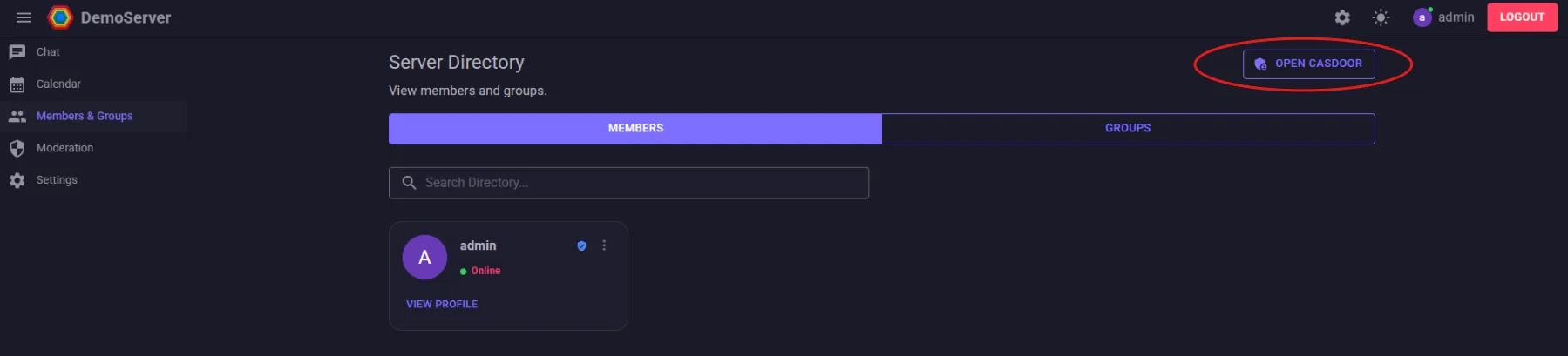
- Navigate to the Members & Groups (your-server-url.com/Organization) page in the Spokes server UI.
- Click the Open Casdoor button in the top right corner.
- You will be automatically logged in as your current user within the
spokes-orgcontext.
Method 2: Direct Login (For Global Admins)
Section titled “Method 2: Direct Login (For Global Admins)”To access the root built-in organization and configure global identity settings, you must log in directly with the Global Admin account:
- Open an Incognito / Private Browsing window (or ensure you are completely logged out of Spokes).
- Navigate directly to the login page:
https://spokes.yourdomain.com/login - Enter the Global Admin credentials (Username:
admin+ the global password from the Setup Wizard).
Creating New Users
Section titled “Creating New Users”By default, the only user created during the setup wizard is your administrator account. To invite friends or team members to your Spokes server, you will need to create user accounts for them in Casdoor.
1. Open the Casdoor Admin Interface
Section titled “1. Open the Casdoor Admin Interface”To manage users, open the Casdoor admin page using Method 1 above.
(It is easiest to access the Casdoor global admin interface from an incognito window to avoid conflicting sessions).
2. Navigate to Users
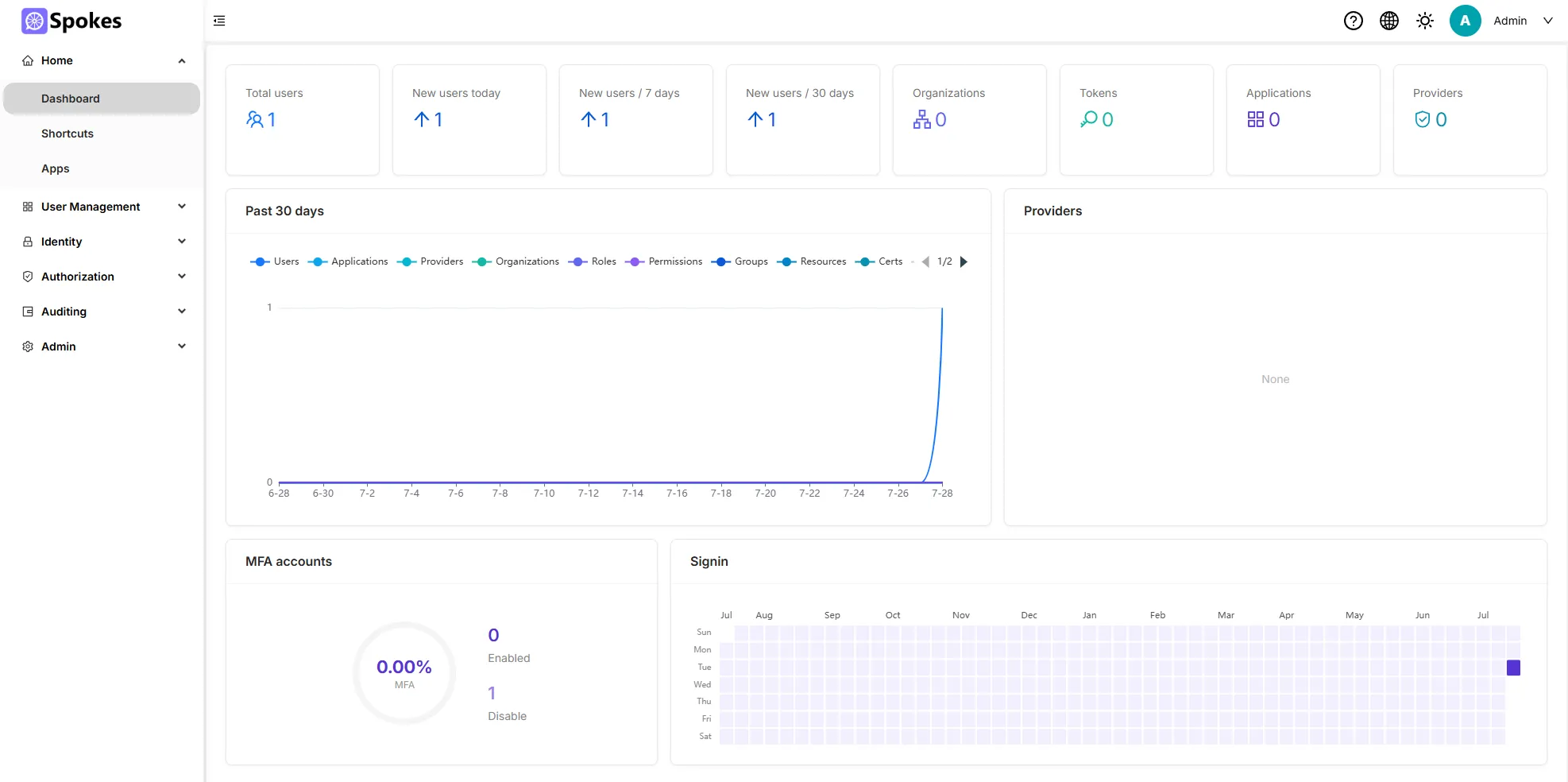
Section titled “2. Navigate to Users”Once inside the Casdoor dashboard, go to the Identity page in the sidebar, and click on Users.
3. Add a New User
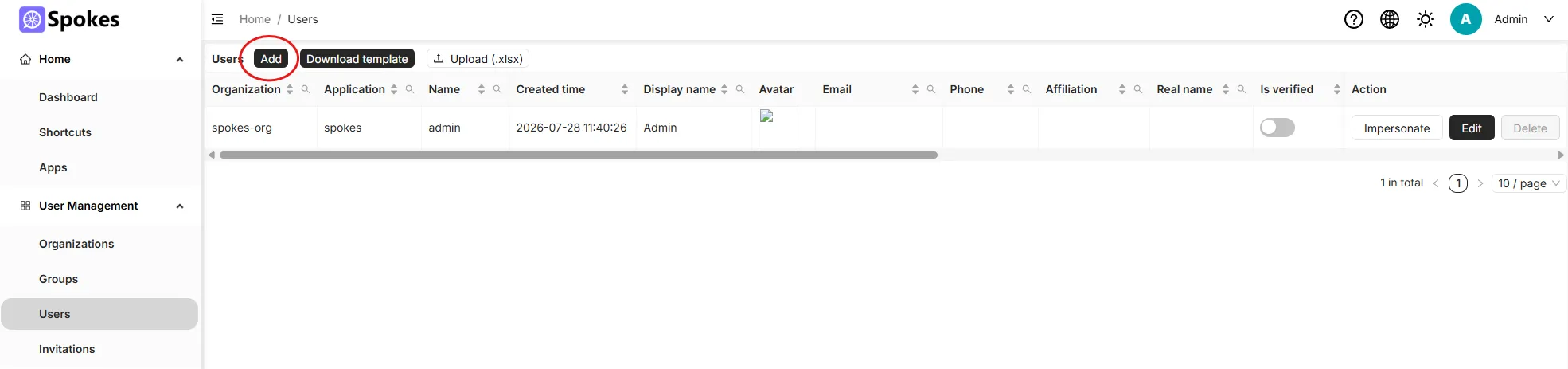
Section titled “3. Add a New User”On the Users page, you will see your administrator account. Click the Add button in the top right to create a new user.
4. Configure User Details
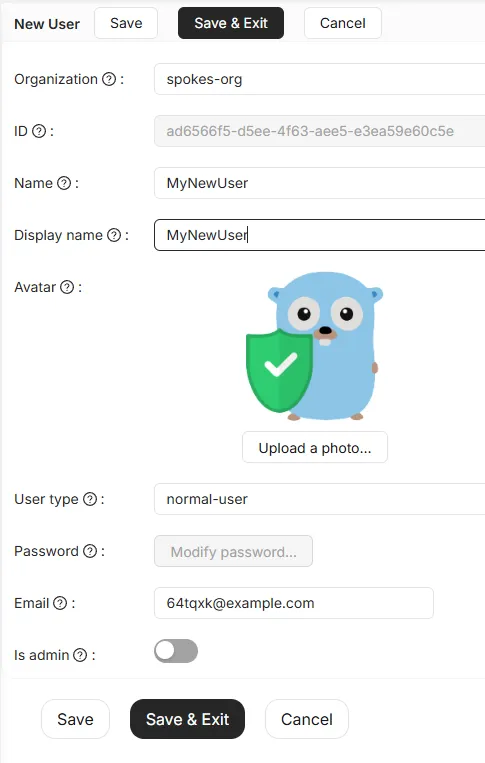
Section titled “4. Configure User Details”Set the user’s properties:
- Name: This is their unique login identifier (must be in lowercase without spaces).
- Display Name: Their visible name in Spokes.
- Password: Set a secure temporary password for the user. They can change it later.
(The user avatar inside Casdoor is not used in Spokes. Users can set their own avatars directly inside Spokes later. Emails are only required if you plan on using Casdoor’s advanced features like password resets.)
Click Save.
Your users can now log into your Spokes server using the credentials you just created!
Additional Integration Details
Section titled “Additional Integration Details”Spokes takes several steps to ensure the Casdoor experience feels native and seamless:
- Branding Synchronization: When you update your server name, logo, or icon in Spokes, those changes are automatically synchronized to the Casdoor application. Your users will always see a login page that matches your brand.
- First-Run Sanitization: By default, Casdoor exposes dozens of complex identity management fields. Spokes automatically sanitizes the
spokes-orgUI, hiding unnecessary navigation items and profile fields so your users are presented with a clean, easy-to-understand directory.